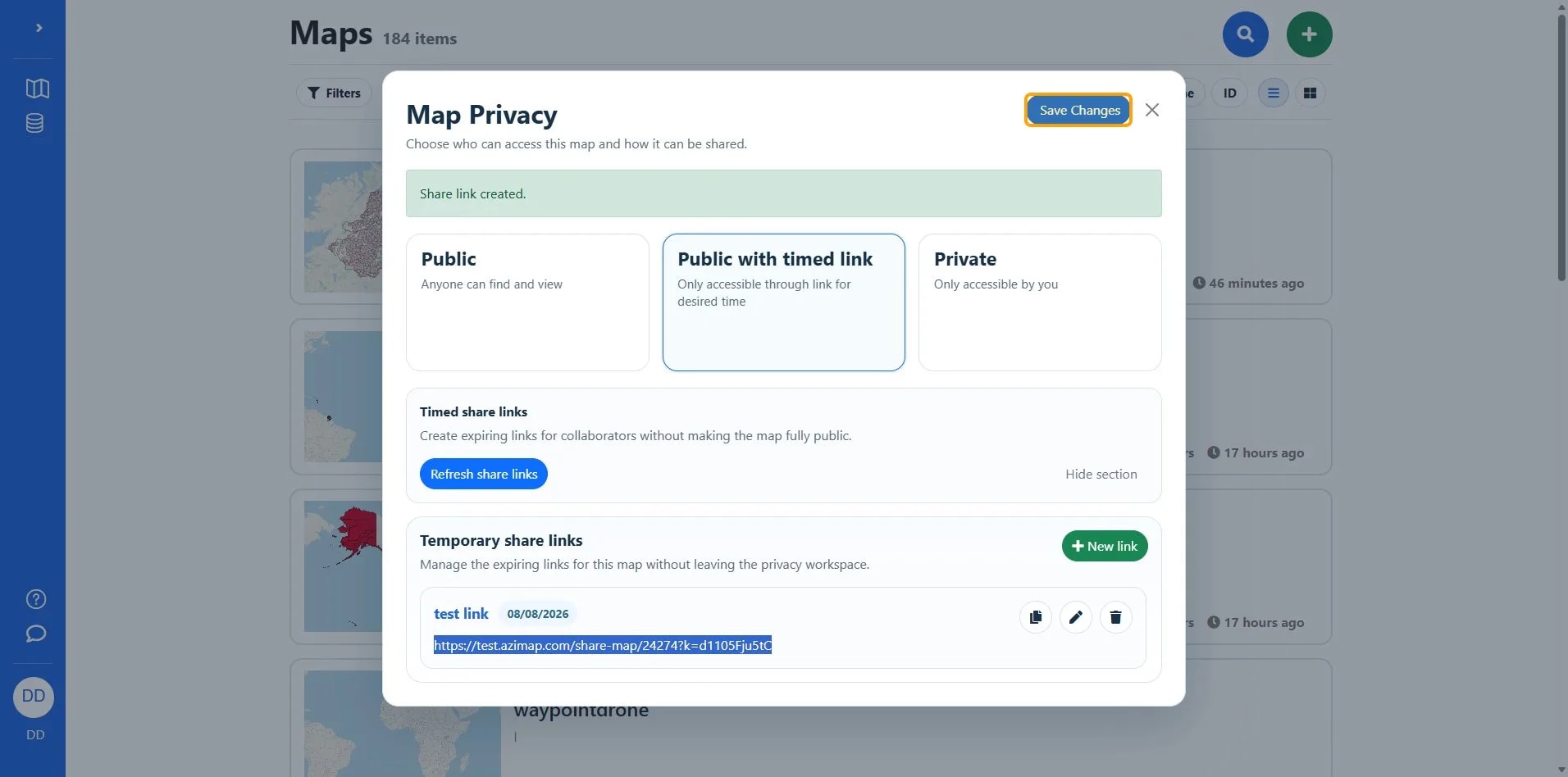
This workflow guides users through configuring map privacy settings and creating shareable links. It includes steps to set visibility options, add identifiers, and generate temporary access links.
AlertMaps and dashboards are linked, so when you change privacy on a map , it changes privacy on that map's dashboards too.
1
Click the Map actions button to open options for managing map config.
2
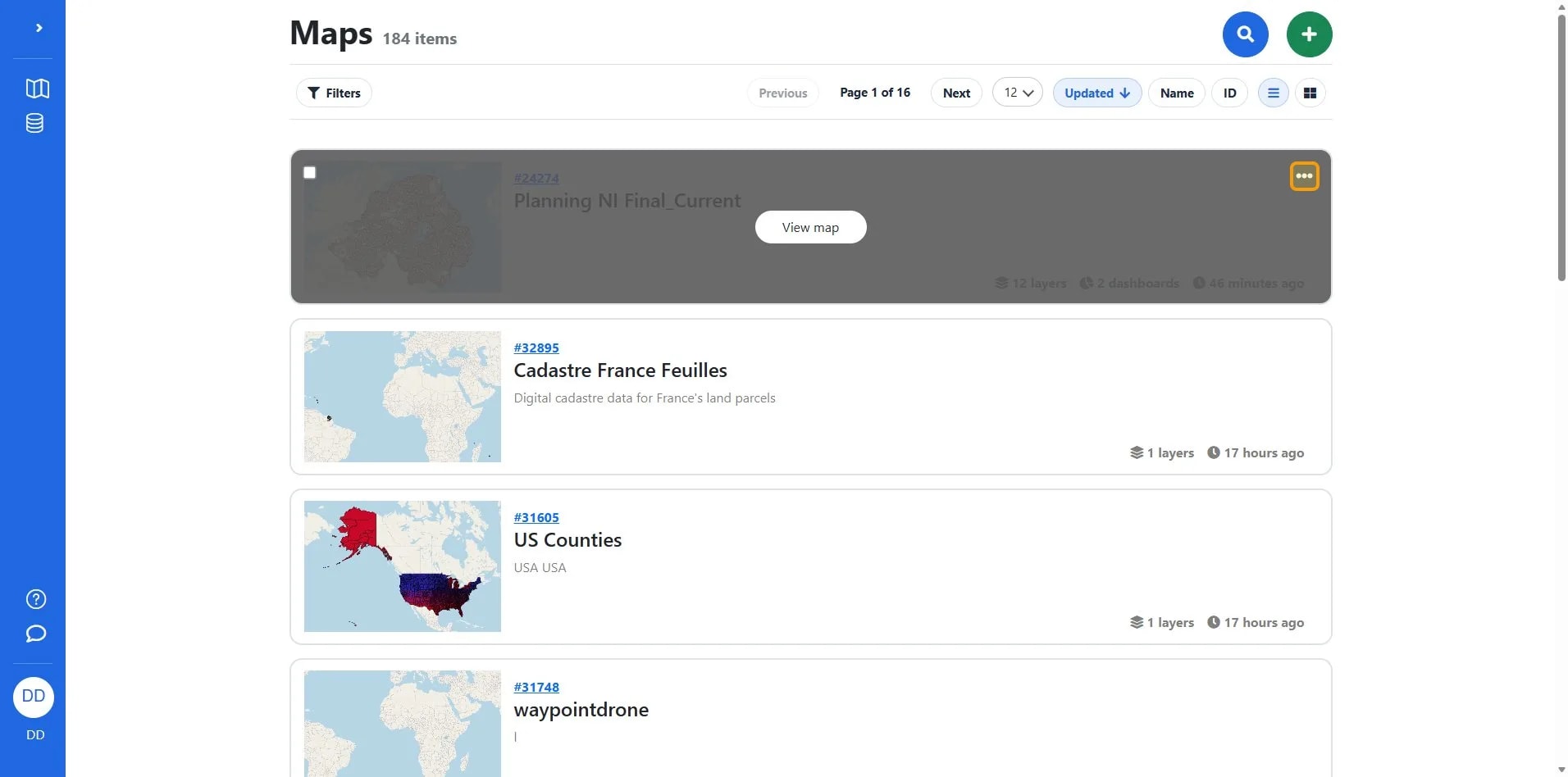
Click Privacy.
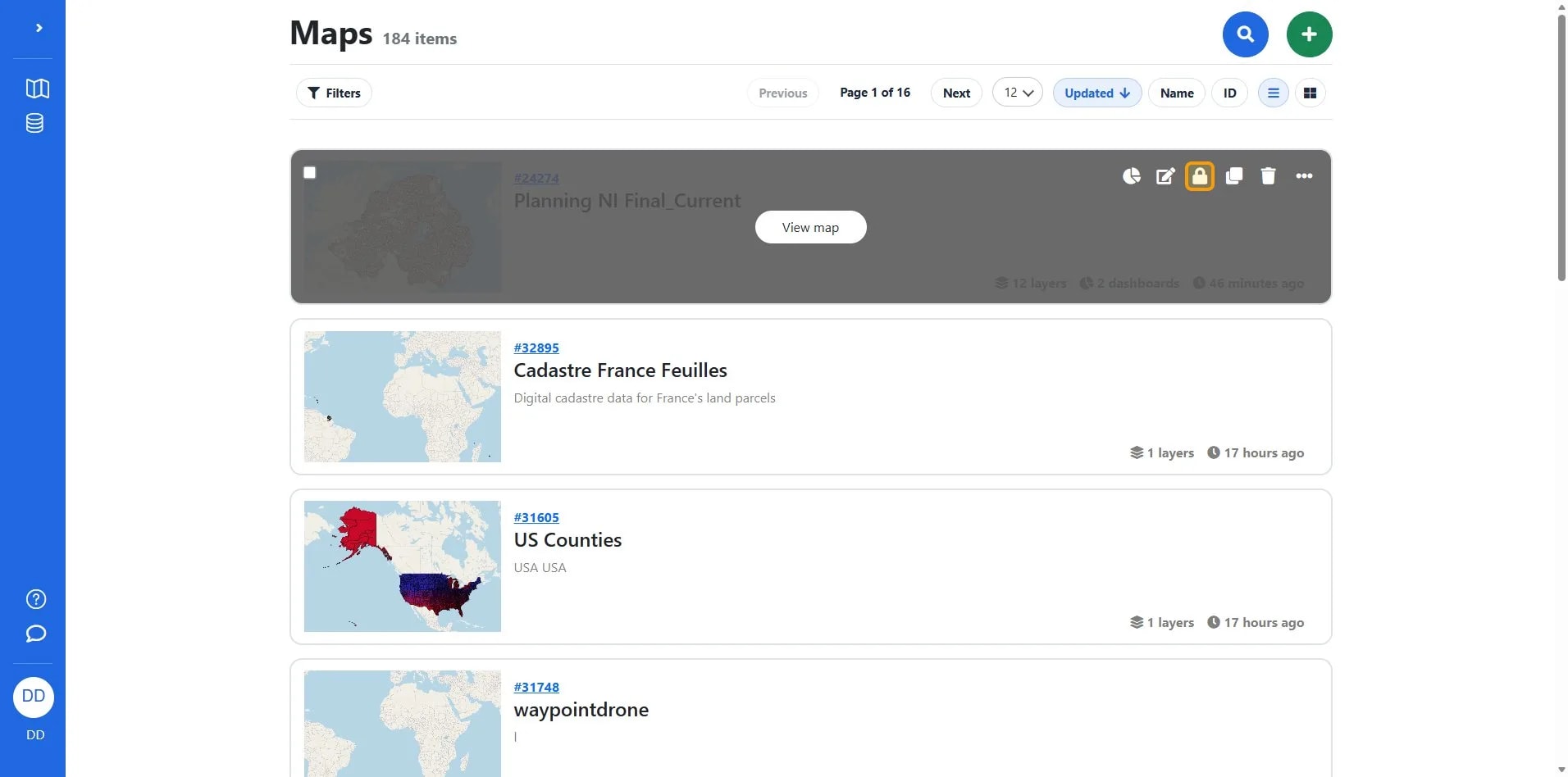
TipShare link and embed snippet are available at the bottom of the Public section
TipIf you want to share without Azimap map branding, use the embed link without the wrapping iframe html.
3
This is the share link.
4
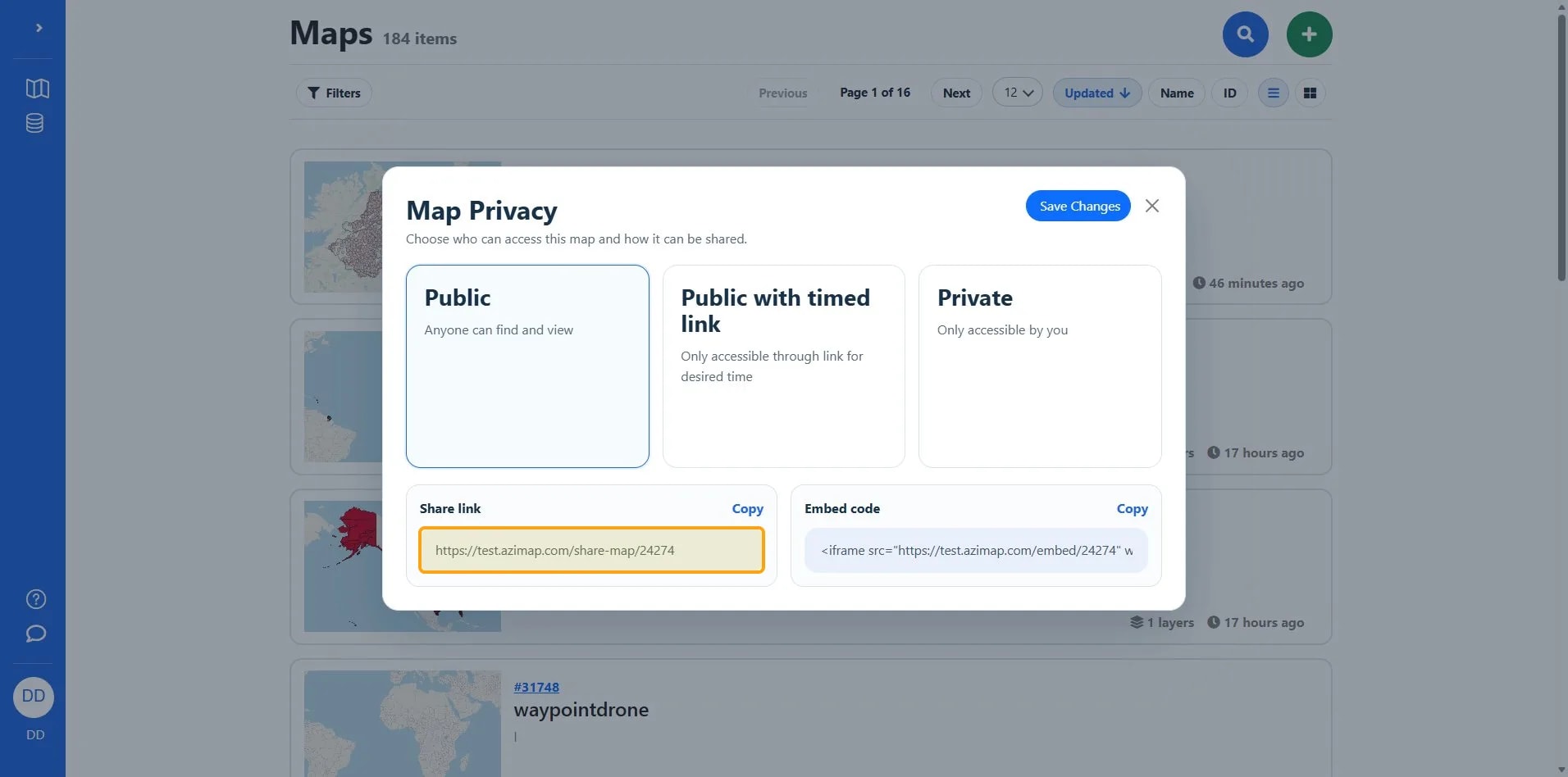
This is the embed snippet.
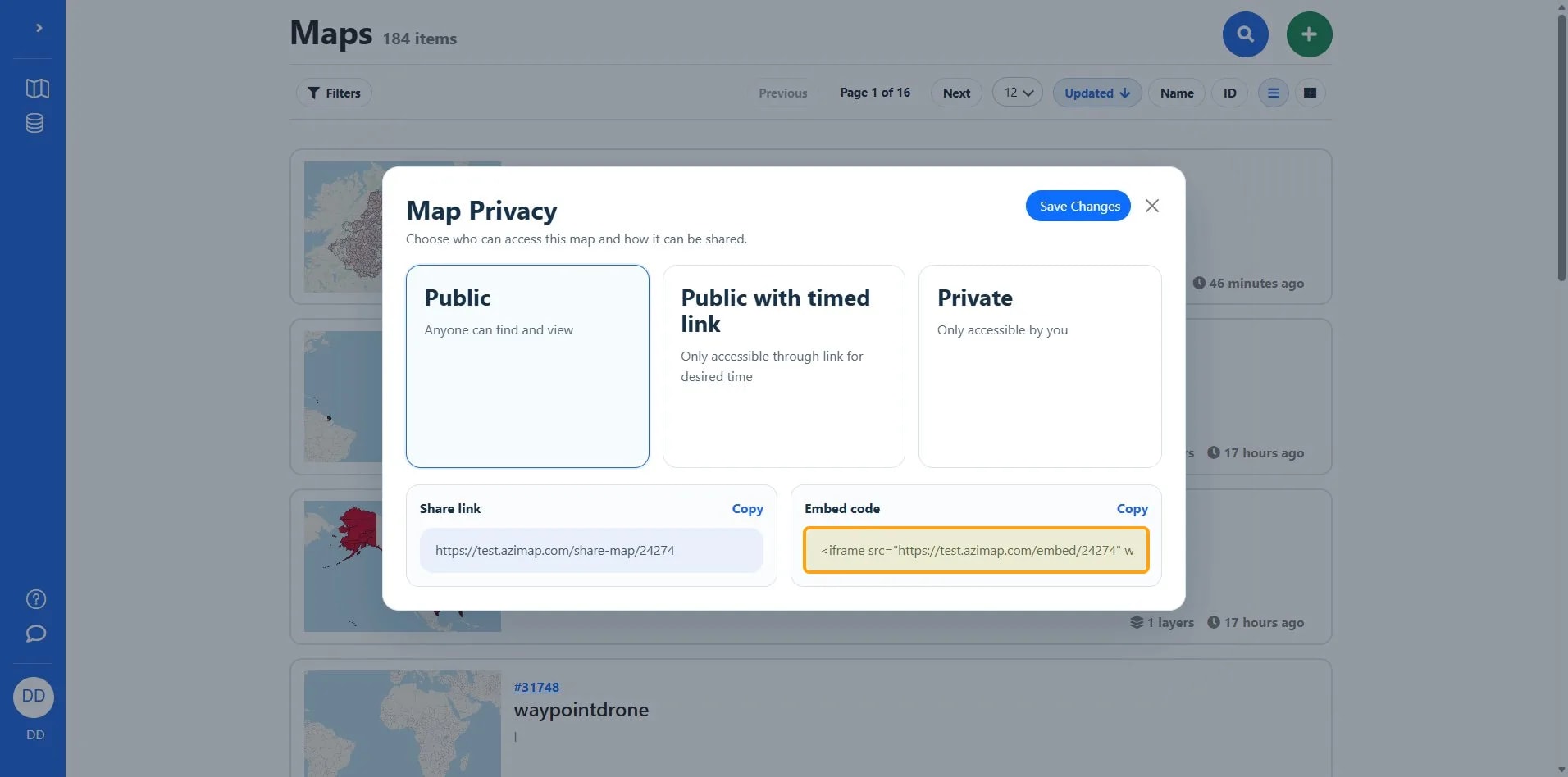
AlertTimed links work for anyone with the link, there is no other security attached, make sure you trust the recipient not to share the link/code.
5
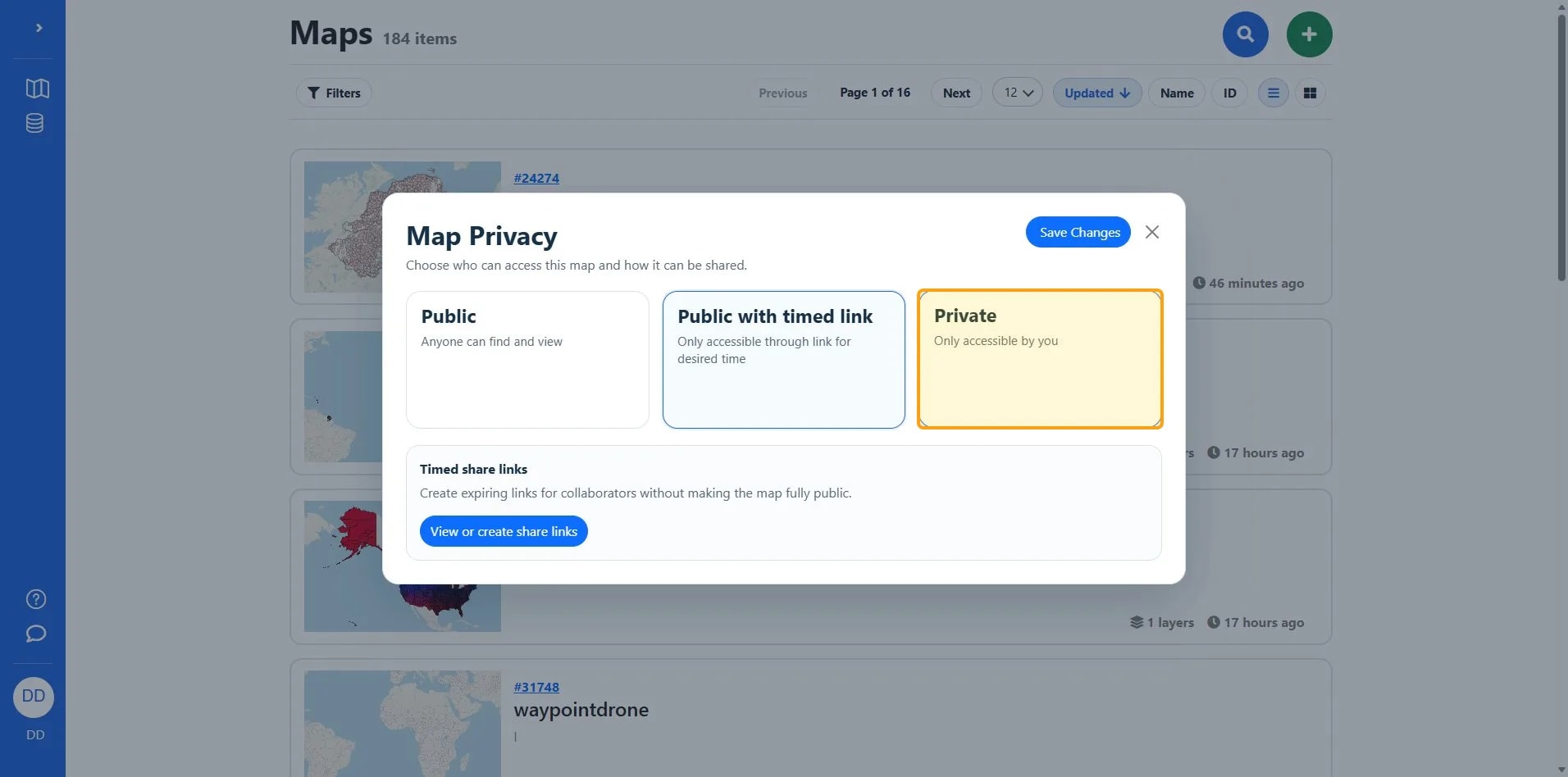
Click Private Only accessible by you.
6
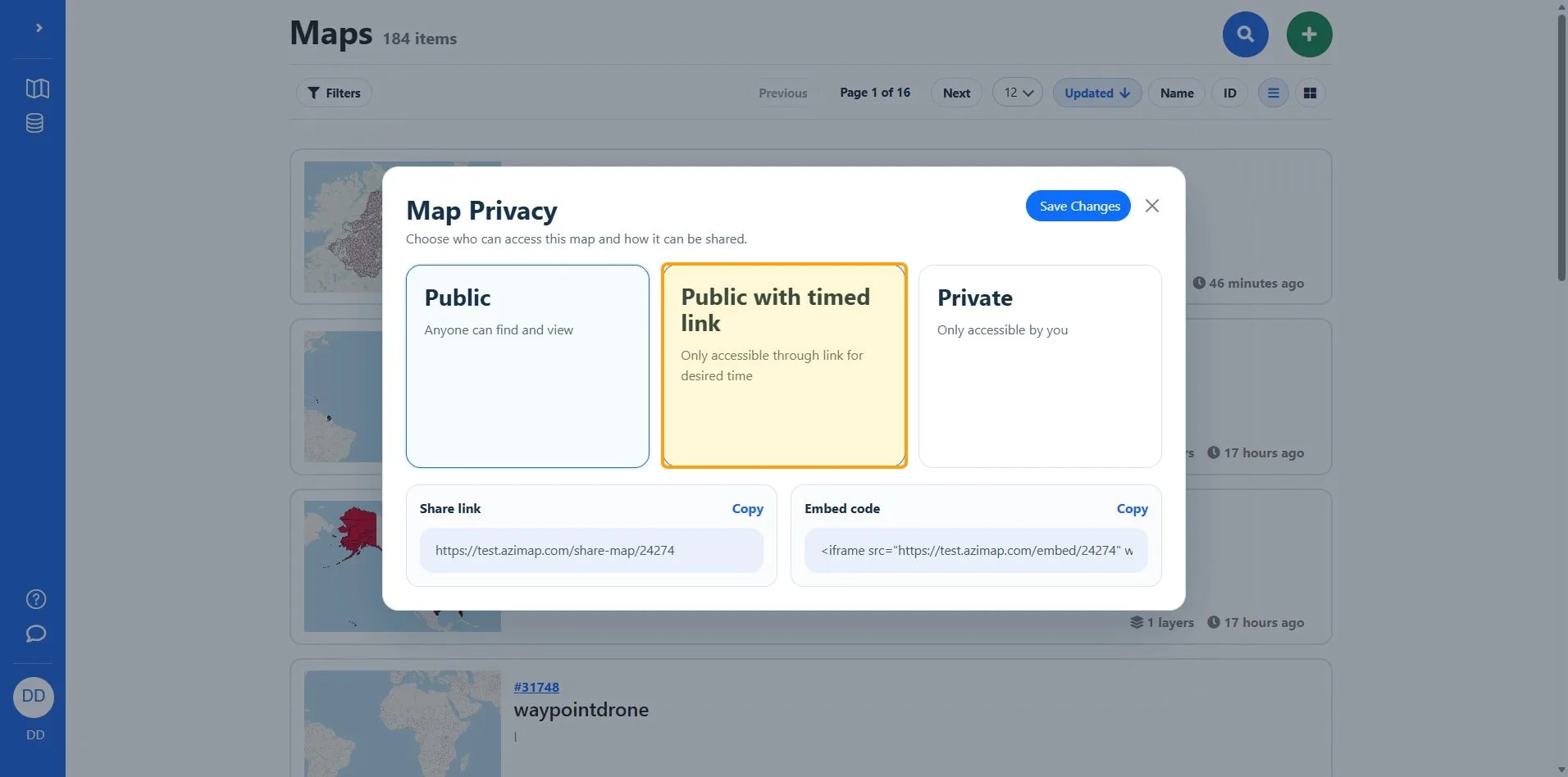
Public with timed link. Create private timed links to a map, this map is only available to those with the share code.
7
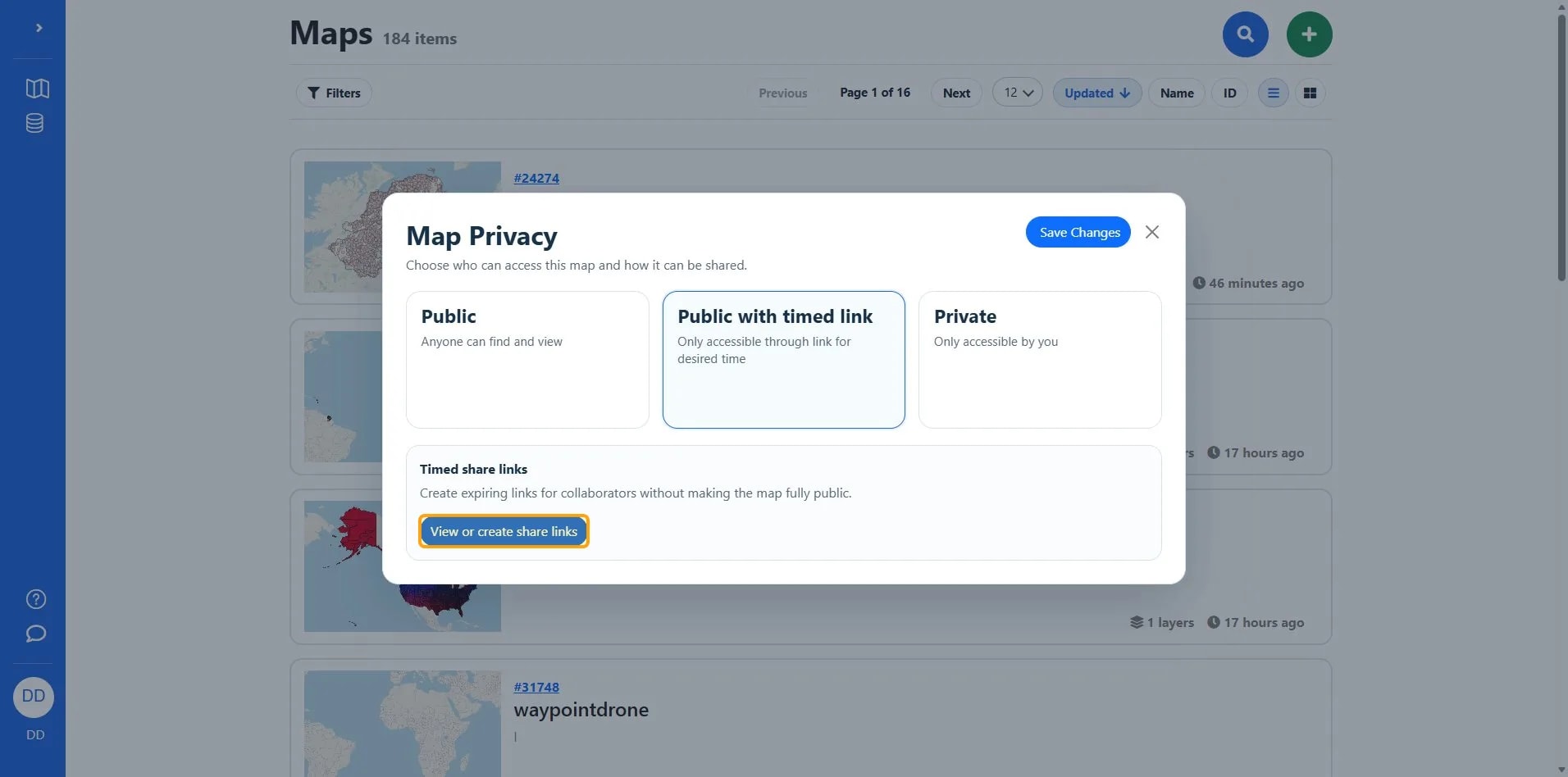
Click View or create share links.
8
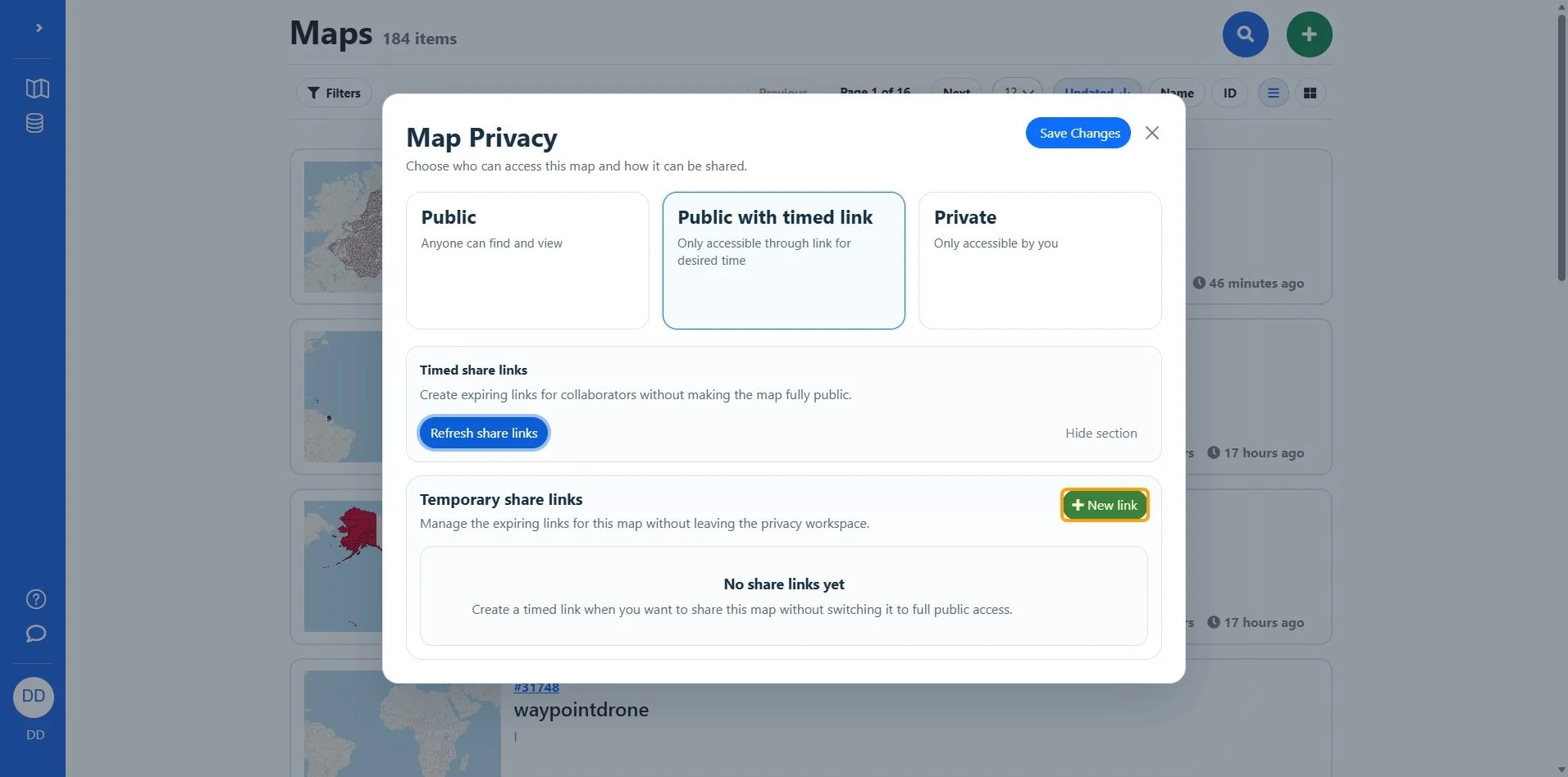
Click New link.
9
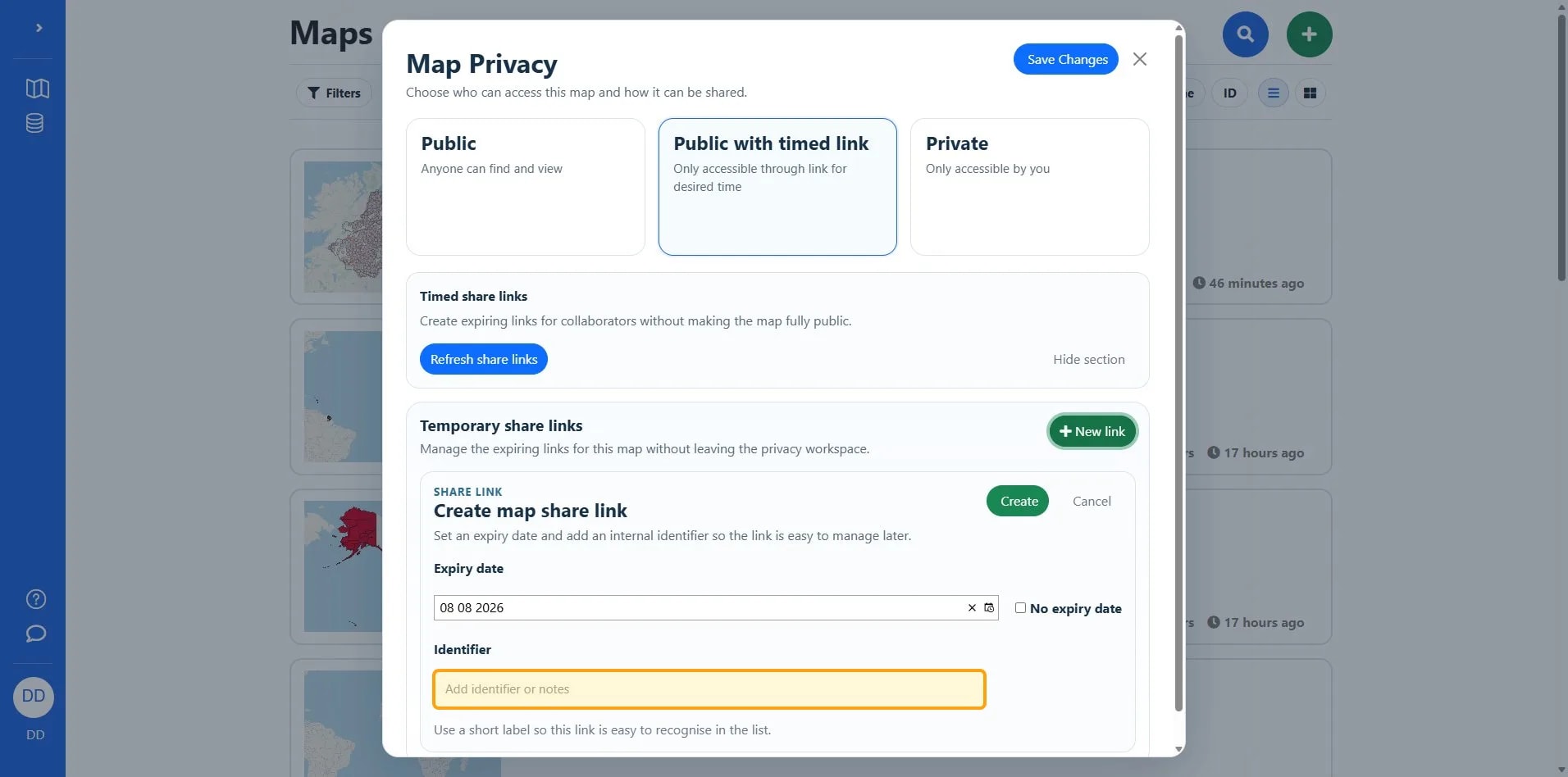
Click Add identifier or notes.
10
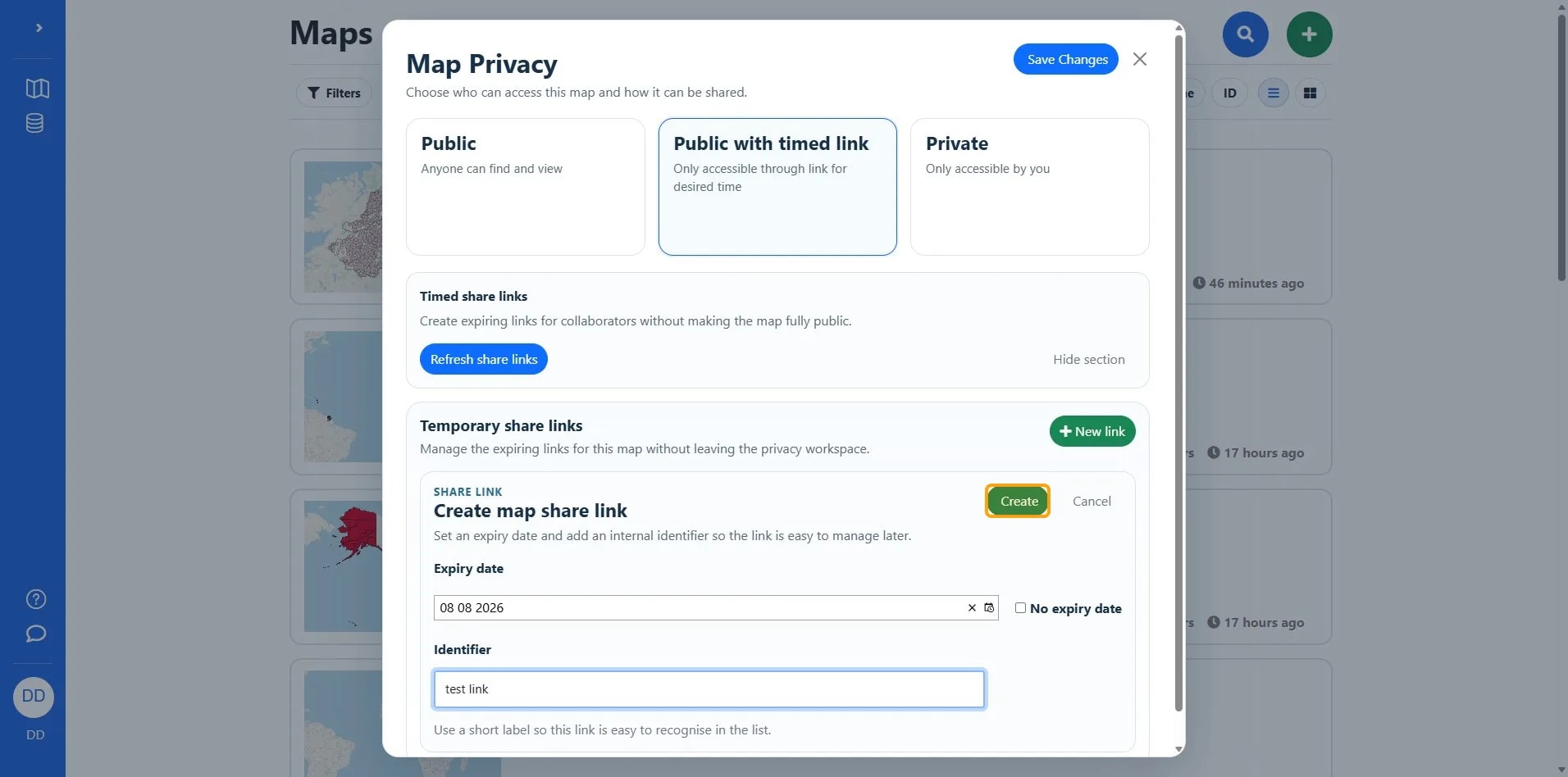
Click the Create button to generate a temporary share link with an expiry date and identifier.
11
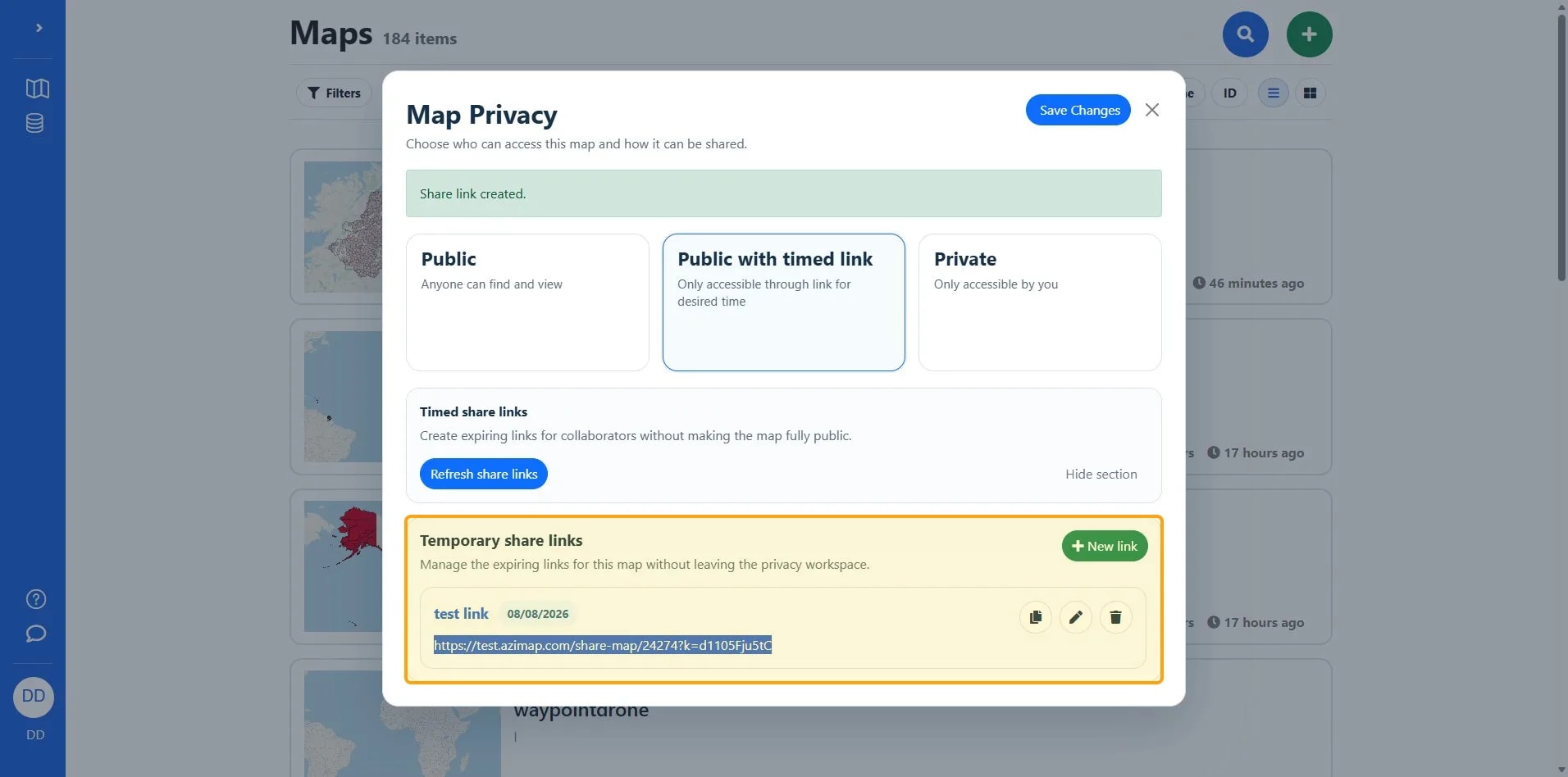
The shared link is available to copy.
12
Click the Save Changes button to confirm map privacy settings.