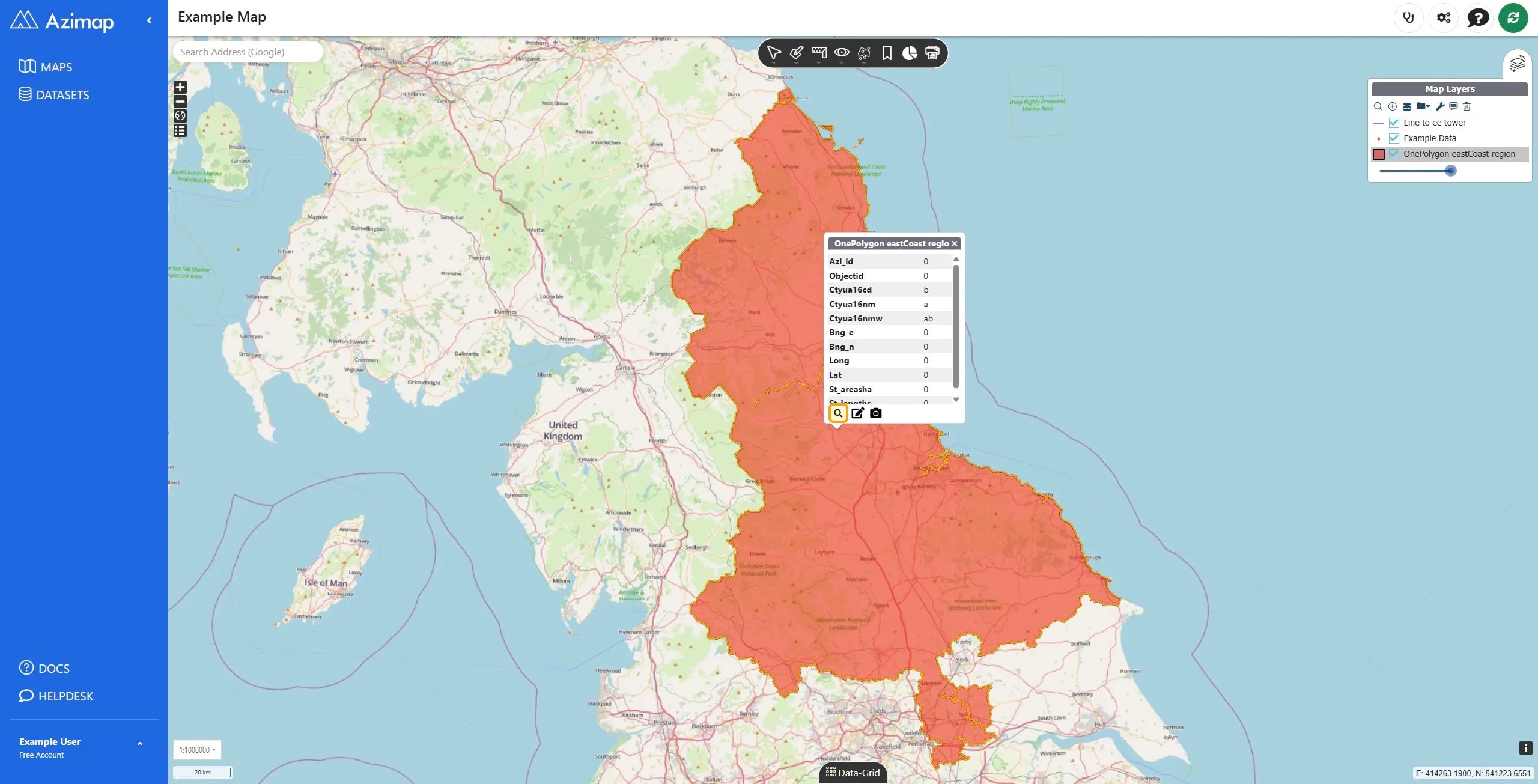
The popup is a map tool that can be enabled or disabled. If it is disabled then clicking on a feature will not show a popup.
Click anywhere on a feature to select it and see the attribute popup for that feature.
The popup will show the data for the selected feature, along with a few buttons along the bottom of the popup. Click the 'Zoom to feature' button to focus the map on the selected feature.
Popups can be configured in the map configuration menu to show/hide certain attributes.
Click the Edit Attributes button to modify the selected feature's properties.
A modal now appears allowing you to edit any of the fields.
Click the 'Update' button to save the changes to the attributes.
Click the Camera icon to attach images to the feature. This will open a menu on you operating system where you can select the image(s) you wish to attach.
Once the images have uploaded they will be shown in the popup. Click the edit button to modify the image description.
Enter a description then click OK.
Click the delete button to remove the image.
Click OK.